Your tests passed. Your app didn't.
Error definitions catch crash dialogs, "Session expired" and other error screens that no step checked for. List the messages in one CSV file, and Optics looks for them on the last screen of every run.
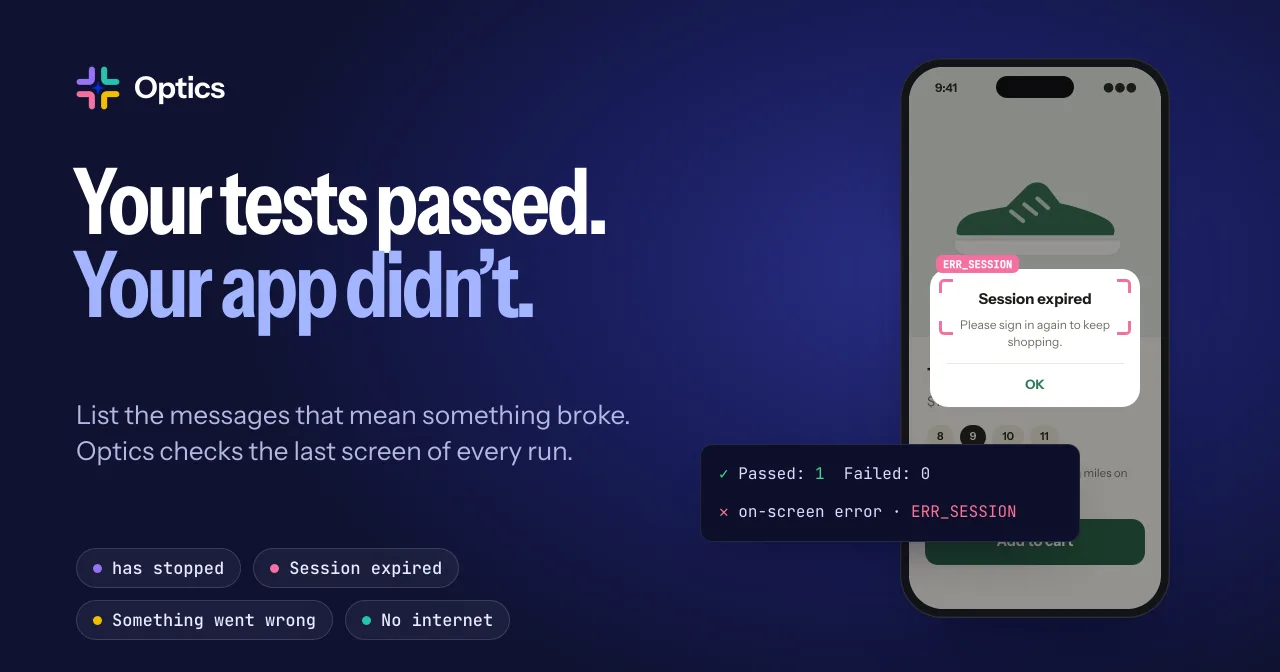
A checkout test signs in, opens a pair of trail runners, adds them to the cart and checks that “Added to cart” appears. Every step passes. Then the app shows “Session expired”, because last night’s build broke the token refresh. The run ends green and nobody looks at the last screen.

Every step passes and CI goes green. The last screen says the shopper was signed out.
A test checks for the things you expect to see. Error screens turn up wherever they like: Android’s “Birch has stopped” dialog, an “isn’t responding” prompt, a page that says “Something went wrong”, a “No internet connection” banner. You could assert against each one after every step, and your suite would double in size and still miss the next message someone adds.
Optics Framework, the open-source test automation framework, has a feature for this called error definitions. You list the messages that mean something went wrong, and Optics looks for them on the screen at the end of every run.
The error definitions file#
Add a CSV anywhere in your Optics project:
error_code,match_string,description,severity
ERR_CRASH,has stopped,The app crashed,critical
ERR_CRASH_AGAIN,keeps stopping,The app crashed again,critical
ERR_ANR,isn't responding,The app froze,critical
ERR_SESSION,Session expired,The user was signed out,high
ERR_SERVER,Something went wrong,Server error page,high
ERR_NETWORK,No internet connection,Offline,medium
match_string is the text to look for, and error_code is the short name you'll see in reports. description and severity are optional. Optics copies them into the report so whoever reads a failure knows what it means.
Optics recognises the file by its error_code and match_string columns, and optics execute uses it on every run. You don't switch anything on or call a keyword.
What happens at the end of a run#

After the last test case, Optics reads the final screen, finds “Session expired” and records the match. A CI step turns it into a failed build.
After the last test case, Optics captures the screen once more and saves a screenshot and the page source with the run’s output. It then looks for every match_string in the screen's text. Matching ignores case and finds the text anywhere, so Session expired also matches "Your session expired. Please sign in again."
For each match, Optics logs a warning to execution_output/execution_logs.log and writes the details to execution_output/detected_errors_<id>.json. The warning looks like this:
ON-SCREEN ERROR DETECTED — code: ERR_SESSION | matched_on: match_string | match_string: 'Session expired' | severity: high | The user was signed outOptics is also meant to add a failing test case named on-screen-error-detection to the JUnit report. In Optics Framework 1.11.0 that entry is missing when every test case passes, so use the JSON file as the signal, as shown below. The error detection docs track the fix.
I ran a checkout test against a small web demo shop. The terminal said Passed: 1 | Failed: 0, and this file appeared next to the report:
{
  "timestamp": "2026-10-16T06:05:38.634183+05:30",
  "detected": [
    {
      "error_code": "ERR_SESSION",
      "matched_on": "match_string",
      "match_string": "Session expired",
      "description": "The user was signed out",
      "severity": "high",
      "detected_at": "end_of_run"
    }
  ]
}
Which text Optics reads#
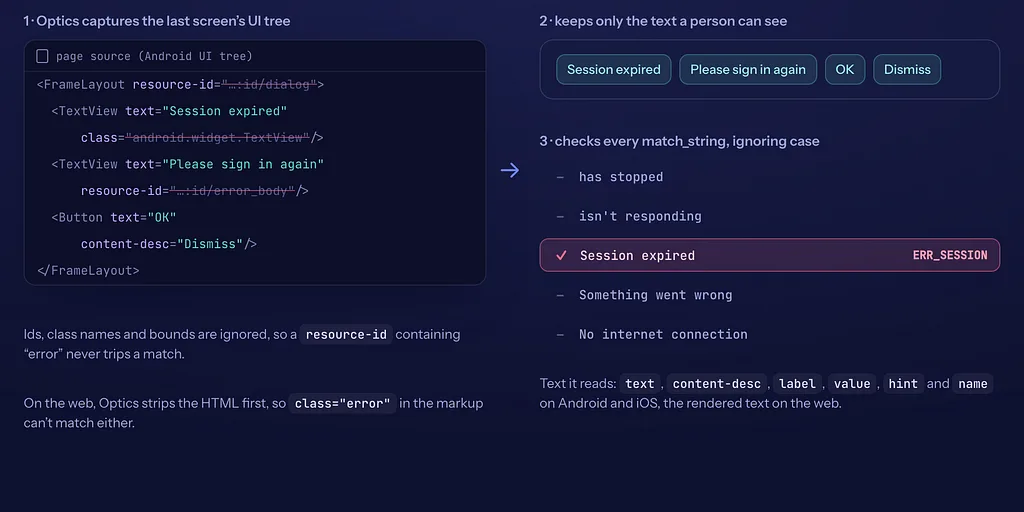
Optics keeps only the text a person can see, then checks it against every match_string.
The check reads the UI tree the driver already provides, with no OCR, and keeps the text a person can see. On Android and iOS that is the text, content-desc, label, value, hint and name attributes. On the web Optics strips every tag and keeps the page's text. It skips ids, class names and bounds, so a button with the id error_retry or a div with class="error" can't set off a match. The whole check costs one page-source call at the end of the run.
Optics matches the error_code column too. If your app prints its own codes, such as "Error E1042", use E1042 as the code and Optics will catch it even when the wording around it changes.
Make CI fail on it#
The JSON file appears only when something matched. To fail the job, add one step after the suite that fails when the file exists:
- name: Run the suite
  run: optics execute birch-tests
- name: Fail on error screens
  run: |
    if compgen -G "birch-tests/execution_output/detected_errors_*.json" > /dev/null; then
      cat birch-tests/execution_output/detected_errors_*.json
      exit 1
    fi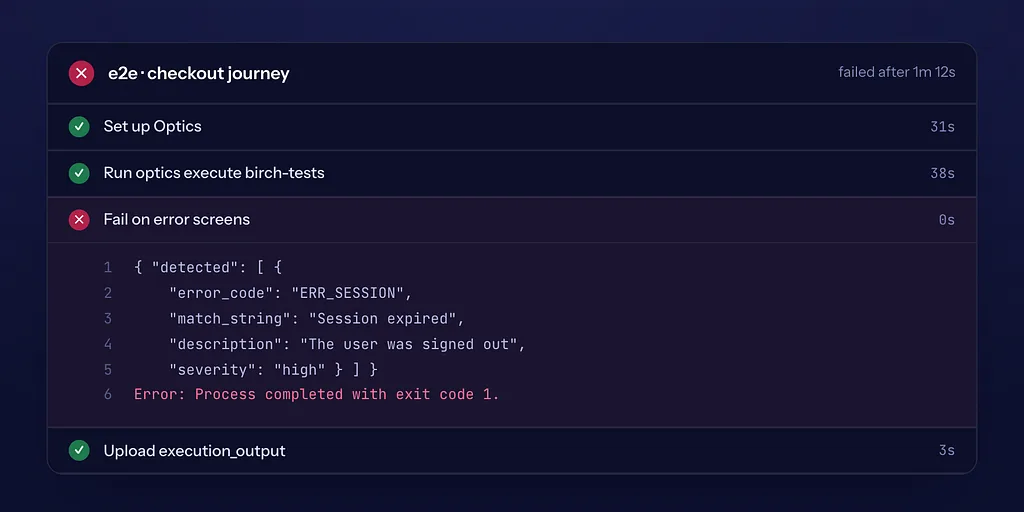
The suite step passes. The next step fails and prints which message was on screen.
A clean run passes the step. When the build goes red, the job log already shows the error code and the message, and you don’t have to open a screenshot to find out why. Run it on a fresh checkout, since an old execution_output folder still holds the previous run's file.
Why it helps#
You get the check on every test you already have, and none of them change. One file covers a project’s Android, iOS, web and TV runs, because Optics reads each driver’s UI tree the same way. Anyone can keep the list up to date: when support starts seeing a new error in tickets, they add a row to a CSV and it goes through review like any other change. And when a run fails, the report says “Session expired”, which is what the user saw.
Most teams do this by hand. In Playwright you write an afterEach hook that reads the page text. With Appium or Espresso you write a teardown that inspects the screen, or a script that searches logcat for FATAL EXCEPTION. Logcat catches a crash, but an app showing "Session expired" looks healthy to the operating system. Firebase Test Lab's Robo crawler reports crash dialogs it meets while it explores an Android app, which is useful, though it runs apart from your regression journeys. In Optics the list is a data file next to your tests, and it runs on every platform your suite runs on.
Writing good match strings#
- Pick a phrase that only an error would show. “has stopped” works. “Error” matches too much, such as a help page about error messages.
- Copy the exact words from a screenshot of the error and keep them short. Matching is plain text, so
*and.*match only themselves. - List both Android crash messages. Android says “Birch has stopped” the first time an app crashes and “Birch keeps stopping” when it crashes again.
- Leave out text your app shows on purpose. A match anywhere on the last screen counts.
Tips#
- Leave the app open at the end of the run, so Optics has a screen to read. If your Suite Teardown closes the app, move that step out of teardown.
- Optics checks the screen where the run ends. For a message that can come and go in the middle of a flow, assert the screen you expect next.
- In Python or Robot Framework, call
Add Error Definitionsonce, thenCapture And Detectanywhere you want a check, including halfway through a test.
Try it#
curl -fsSL https://optics-framework.org/install | sh
optics quickstart
Add error_definitions.csv to the project and run optics execute. The docs are at optics-framework.org/docs/run/error-detection and the source is at github.com/mozarkai/optics-framework. New to Optics? Start with Introducing Optics Framework. Later posts in this series cover the locator fallbacks, AI agents over MCP, and testing phones that can’t run automation software.